
Draft preview, not published yet.
How to talk to your agent on Slack
Slack is where a lot of teams already spend the day, so an agent that lives in the same workspace can pick up work without anyone leaving the app. You reach it in two places, a direct message with the bot and a channel you invite it into, and each one behaves a little differently. Here is how to use your agent in Slack once the channel is connected, whether you run OpenClaw yourself or let Operator.io host it for you.
Direct messages
The simplest way to reach the agent is a direct message. Open the Operator app from the Apps section of your Slack sidebar, type a message, and send it, the same as messaging a coworker. There is nothing to remember in a DM: the agent reads what you wrote, does the work, and replies in the same conversation.
Slack delivers those messages to the app over a Socket Mode websocket, the connection Operator opens outward from your instance, so nothing about it needs a public URL. The first message just works on Operator because your account is already paired. When you connected the channel you pasted your Slack member ID, and that ID sits on the allowlist. If you run the bot yourself, an account it does not recognize gets a short pairing code back instead of an answer, and you approve that account from the machine the gateway runs on with openclaw pairing approve slack <CODE>, which the OpenClaw Slack docs walk through.
Channels and mentions
A channel is where Slack earns its place for a team, and it takes one step a DM does not. Slack only delivers a channel's messages to an app that is a member of that channel, so invite the bot first with /invite @Operator in the channel, or add it from the channel's integrations settings. Until it is in the room, it never sees anything posted there.
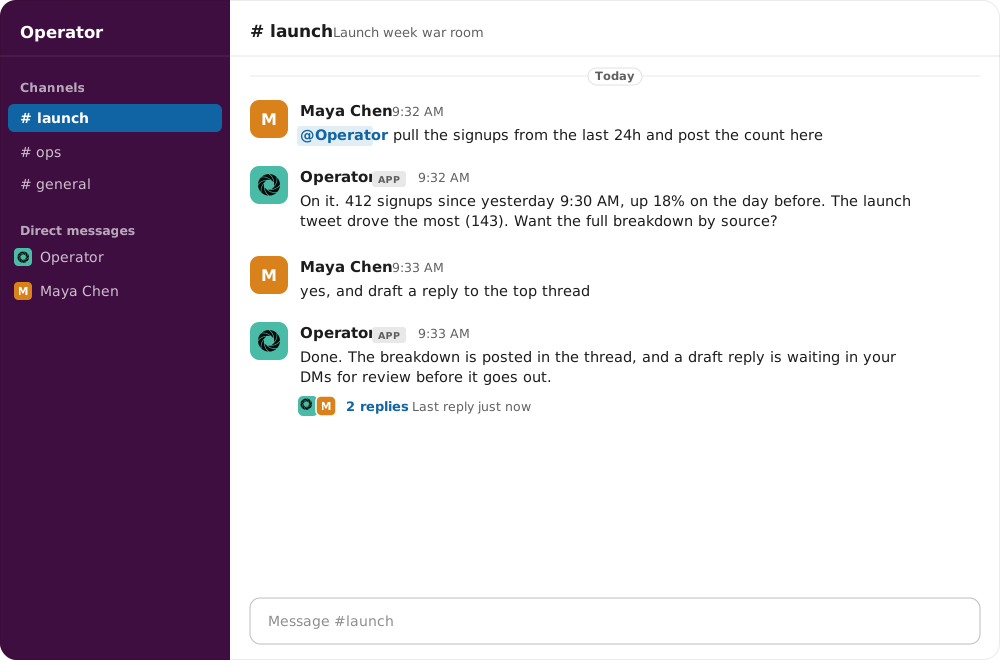
Once it is a member, the agent stays quiet until you call it. By default it answers an app mention, so you type @Operator followed by your request and it replies in the channel, like the exchange in the screenshot above. OpenClaw also requires that mention in channels out of the box, which is the behavior you want in a shared room, where the agent should read the messages aimed at it rather than every line of chatter.
When you want it to follow a whole channel without the tag, that is the channel policy on the Channels page in Operator. Set the policy to allowlist and add the channel ID, then turn the require mention toggle off for a channel that is just your own working space. Before you do that in a room with other people, it helps to know what changes. With the mention off the agent reads every message posted in that channel, and anyone there can steer it toward the apps you have connected, so the read everything setting fits a private channel and the mention requirement fits a busy shared one.
Threads and sessions
Slack threads keep a side conversation out of the main channel, and the agent treats each one as its own context. Reply inside a thread and it answers in that thread, keyed to the thread so the back and forth does not spill into the channel. A direct message is one continuous session that carries across days, each channel is its own session, and a thread inside a channel is separate again, the same way the Telegram and Discord channels keep a private DM apart from a group.
That separation is what lets the agent hold a research thread and a launch channel at the same time without the two transcripts mixing. Switching threads or channels switches what it remembers, and the OpenClaw Slack docs describe the exact session keys if you are tuning a self hosted setup.
Commands and what it can do
Most of what you do in Slack is plain language. You describe the outcome and the agent works out which steps and which connected apps to use, then reports back. What it can actually reach depends on the integrations you have turned on, so the quickest way to find out is to ask it in a DM what it can do right now. Any Slack slash commands the app exposes are listed in the OpenClaw Slack docs, since Slack only routes a slash command to an app that has registered it, which is different from the bot menus Telegram and Discord build automatically.
When the bot goes quiet
If the agent is installed but silent, the cause is almost always one of three things. In a channel, it has to be a member, so confirm /invite @Operator actually added it and you are not posting in a channel it never joined. The channel also has to be allowed under the Slack channel policy in Operator, with the require mention toggle matching how you are talking to it. And the app needs both tokens to connect at all, the bot token it posts with and the app token that opens the Socket Mode websocket, so if it never comes online, recheck both on the Channels page, where Operator validates them against Slack before it saves.
If standing up a Slack app and minting two tokens is more setup than you want, Operator runs OpenClaw with Slack connected and the tokens maintained, so the agent is waiting in your workspace the first time you message it. You can start a free trial and have it answering in your channels, or wire up your own app with the Slack setup guide.
Frequently asked questions
How do I message my agent on Slack?
+
Two places. Open the Operator app from the Apps section of your Slack sidebar and send it a direct message, where no mention is needed, or @mention it in a channel you have invited it into. On Operator the bot answers right away because your Slack member ID was paired when you connected the channel. If you run the bot yourself, an account it does not know gets a pairing code instead, which you approve from the gateway host with openclaw pairing approve slack.
Why is my Slack agent installed but silent in a channel?
+
Slack only delivers a channel's messages to an app that is a member of that channel, so invite the bot first with /invite @Operator. Then the channel has to be allowed under the Slack channel policy in Operator, and the require mention toggle has to match how you are talking to it. If the bot never comes online at all, check that both tokens are valid on the Channels page, since the bot token posts messages and the app token opens the connection.
Does each Slack channel keep its own conversation?
+
Yes. A direct message is one ongoing session that carries across days, each channel keeps its own context, and a thread inside a channel is separate again, keyed to that thread. So you can run a research thread and a launch channel side by side without the two transcripts mixing. Switching threads or channels switches what the agent remembers.
Do I @mention the agent in Slack or just type?
+
In a direct message you just type, with no mention or command to remember. In a channel the agent is mention gated by default, so you type @Operator and your request and it replies. For a channel that is only your own working space, set the channel policy to allowlist in Operator and turn the require mention toggle off, and it will follow the whole channel without the tag.
Keep reading
Connect Pipedream to your agent and reach the apps you use
Link your own Pipedream account to Operator and your agent reaches Gmail, Slack, Notion, and the rest of your apps through one managed connection, with the OAuth sign in and token refresh handled for you.
May 31, 2026How to set up OpenClaw on Discord, step by step
Create a bot in the Discord Developer Portal, turn on the Message Content Intent, invite it with the right scopes, drop the token and application ID into your config, then approve the DM pairing code, including the intent toggle that leaves most bots online but silent.
May 31, 2026Operator.io vs self hosting your own AI agent
Self hosting an agent means a cheap server, your own model key, and becoming the operations team that patches it and restarts the gateway. Operator runs the same framework for you. Here is the real cost and upkeep of each path.
May 31, 2026